This is how we can easily configure the Expressions in PowerApps
Power Platform, Microsoft Dynamics CRM 4.0, 2011, 2013, 2015, 2016, D365 CE, C#, ASP.net and MVC, Azure
Friday, June 13, 2025
How to Use SUM, COUNT, AVERAGE, MAX, MIN in Canvas PowerApps
Wednesday, February 28, 2024
How to Make a Text Bold in Canvas App?
Introduction:
In this Article we will see how to make Text Bold in Canvas App
Steps:
1. Navigate to https://make.powerapps.com
2. Click Apps
3. Create a New App with Blank Template
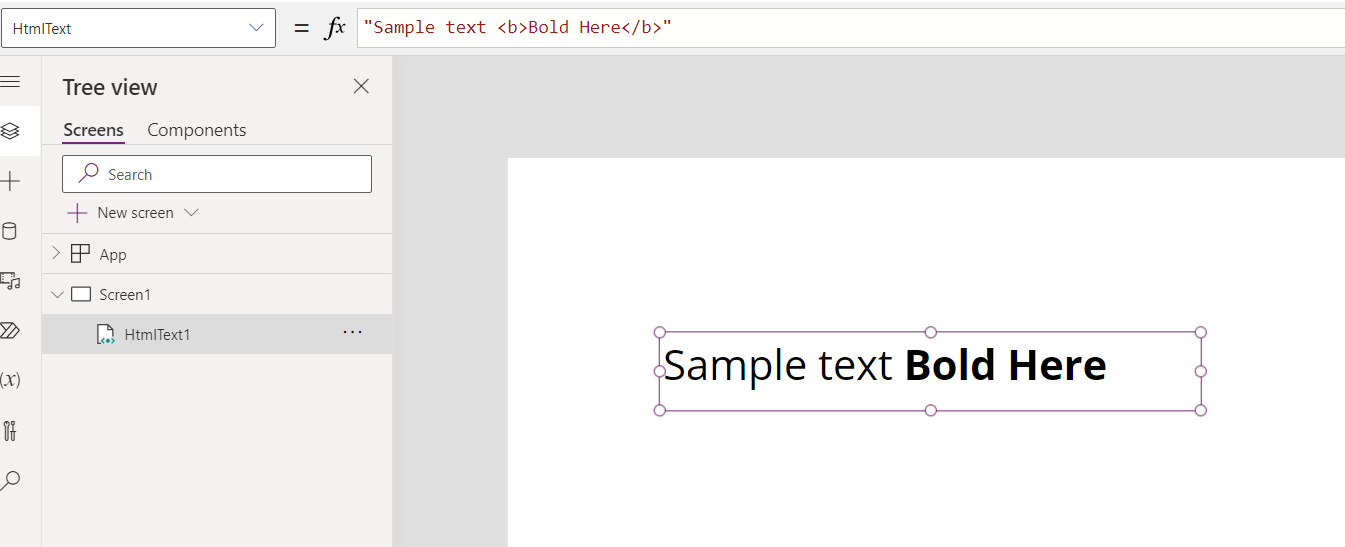
4. One the Page gets Loaded Click Insert and Add HTML TEXT

5. Now Add below text in HTML Text

"Sample text <b>Bold Here</b>"
Explanation:
Sample text --> Sample text Value
<b> --> Bold Opening
Bold Here --> Text to Bold
</b> --> Bold Closing
Final Image:
Conclusion:
Based on above steps you can convert text to BOLD from Canvas PowerApps
Monday, November 14, 2022
Generate Word Document Template Using Power Automate
Introduction:
In this Blog am explaining how to Generate Word Template using Power Automate with Back End as SharePoint.
And am Covering how to add Repeating Controller and Plain Text Content Controller in Word Document.
Implementation Steps:
1. Navigate to your SharePoint Site and Create SharePoint List
2. In my case i have created 2 SharePoint List One is Employee and another Student
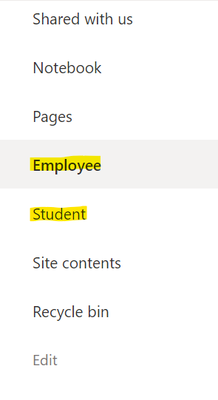
3. Add Records to Employee List and Student List
4. Now Open Microsoft Word Document
5. Once Microsoft Word Opened Click on Developer in Ribbon Tool Bar
6. If the Developer is not available then Click File --> Select Options --> Click Customize Ribbon and Select Developer --> and Click OK
7. Once Done Click Insert and Select Table
8. Now Input the Name in the First Column
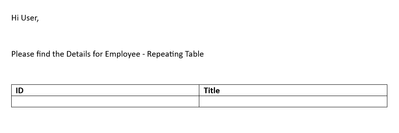
9. Now Select the ID then Click On Developer Ribbon Tab at the TOP then Select Add Plain Text Content Controller
10. Now Once Done Select the ID Column then Click Properties
11. After Clicking Properties it will Open Popup Enter Title and Tag
12. Once done, do the same for other Column as Well
13. Once Done, Now we are ready to Add Repeating Content Controller For the Table so that it will display All the Values from the List
14. Now Click On Properties and Provide the Tag and Title For Relating Table
15. The Same Way Create a New Table For Student and Add the ID and Title
16. Now am Adding a Single Line of Text Value as Well--> Simply add a Single Line of Text
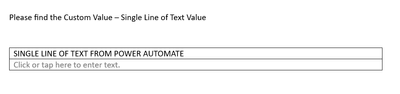
17. Once Done Save the File in Your SharePoint Site
Once after Record Gets Created navigate to https://flow.powerautomate.com
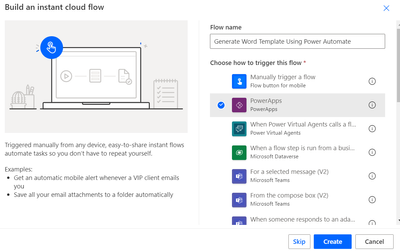
18 . Click Apps --> Select New Flow --> Select Instant Cloud Flow and Input the Name as (Generate Word Template Using Power Automate) and Click Create.
19. Now Click Add Step and Select SharePoint and Search for Get Items and Add the SharePoint Site and Select List Name
20. Now Add Get Items Again and Get the Student List
21.Once Done Click Add Step and Search For SELECT
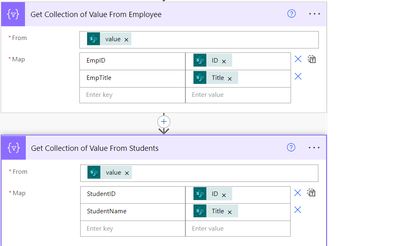
22. Now Select the Respective Values then Please make sure the EMPID and EMPTITLE As like as Properties which we have created in Point 11
23. Now Select Add Steps --> Search for Word then Select POPULATE A MICROSOFT WORD TEMPALTE then Select the Locations
24. Now for Populating REPEATING TABLE click the HIGHLIGHED BUTTON and Select the OUTPUT Values form Point 21.
25. Now Add Some Custom Values in Single Line of Text.
26. Now Send an Email
That's it ![]()
Now are are good to start the Process
Now the Flow Created Successfully. Now am Opening My Email and Downloading the file
Open the Downloaded File
That's it ![]()
I have mentioned Step by Step behaviors for How to Generate Word Document Template Using Power Automate ![]()
Thursday, September 2, 2021
Add Image control in Dataverse or CRM Templates
Navigate to https://make.powerapps.com
Navigate to
Solutions
Create a
Solution by Providing Required Details
Click Save
Then If you
want to Create a new Table click App then select Table and Provide Required
Information
Else
Click on
Add Existing then Select the Existing Table
Open the
Created/Existing Table
Then Create
an Image File by clicking on Add Column
Click Save
Now go to
Forms --> Add
the Field into the Form
Once Added
the template in the Form click Save then Publish
Now Click
on Back
Then Navigate
to Data Create a New record and Add an Image File
Once the
Record gets Created
Navigate to
Advance Settings --> By clicking on Gear Icon at the top then
Select Template
Select the
Templates and Click New
Select Word
Template and select Entity (based on the entity which you have added into the
solution), then click on select Entity. System will Generate a File
Open the
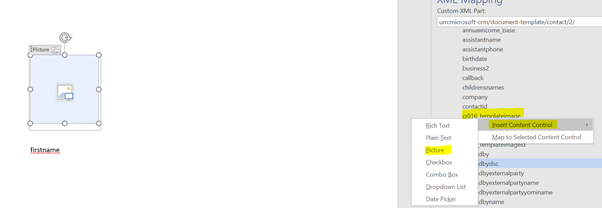
File then Click on Develop at the top then click on XML Mapping Pane
then Select
the last option in Custom XML Part
once
selected click expand then select the Logical name of image which we have created
Right Click
on Image then select Insert Content Control Then Click Picture
Once the Picture
Added save the File (Demo For Document
Template)
Then
navigate to Dataverse/CRM System then go to template in settings à Select Upload template and Upload
the Filed which we have saved.
Once Done.
Open the Contact Record which we have created
Click three
dots then select Demo For Document
Template click on the file to download
Once
download done open the file
Saturday, July 4, 2020
Enable Sideloading of apps
1) Download and install SharePoint Online Management Shell
2) Execute the script below. (Note that the Sideloading Feature ID is harcoded in SharePoint, as are many other OOTB features)
#CODE STARTS HERE
$programFiles = [environment]::getfolderpath("programfiles")
add-type -Path $programFiles'\SharePoint Online Management Shell\Microsoft.Online.SharePoint.PowerShell\Microsoft.SharePoint.Client.dll'
Write-Host 'Ready to enable Sideloading'
$siteurl = Read-Host 'Site Url'
$username = Read-Host "User Name"
$password = Read-Host -AsSecureString 'Password'
$outfilepath = $siteurl -replace ':', '_' -replace '/', '_'
try
{
[Microsoft.SharePoint.Client.ClientContext]$cc = New-Object Microsoft.SharePoint.Client.ClientContext($siteurl)
[Microsoft.SharePoint.Client.SharePointOnlineCredentials]$spocreds = New-Object Microsoft.SharePoint.Client.SharePointOnlineCredentials($username, $password)
$cc.Credentials = $spocreds
$site = $cc.Site;
$sideLoadingGuid = new-object System.Guid "AE3A1339-61F5-4f8f-81A7-ABD2DA956A7D"
$site.Features.Add($sideLoadingGuid, $true, [Microsoft.SharePoint.Client.FeatureDefinitionScope]::None);
$cc.ExecuteQuery();
Write-Host -ForegroundColor Green 'SideLoading feature enabled on site' $siteurl
#Activate the Developer Site feature
}
catch
{
Write-Host -ForegroundColor Red 'Error encountered when trying to enable SideLoading feature' $siteurl, ':' $Error[0].ToString();
}
#CODE ENDS HERE
Friday, March 4, 2016
Create Access Teams in c#
Create - Pre Operation - Dataverse Accelerator
Introduction: In this Blog, we will see how to Create Pre-Operation Plugin in Dataverse Accelerator Validations: In Contact if user select...
-
Introduction: In this Blog, we will see how to Download Image from Image Field from Dataverse using PowerApps Implementation Steps: 1. Nav...
-
Introduction: In this blog we will see how to Add an Image or Icon in SUBGRID / VIEWS in Model Driven Apps or Dynamics CRM Steps to Follow: ...
-
Hi All, If any one facing the issue in Console application while connecting to MSCRM(onpremises) with IFD as Unable to Login to Dynamics ...