Thursday, May 23, 2024

Is your Asynchronous plugin or Workflow not running in Dataverse?

Introduction:


In this blog we will see how to enable Asynchronous Operation in MSCRM or Dataverse Environments.


Implementation Steps:


1. Navigate to https://admin.powerplatform.microsoft.com/


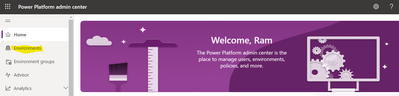
2. Click on Environments


rampprakash_0-1716464005067.png


3. Open the Environment where you want to run your plugins or workflows


4. Click Edit 


rampprakash_1-1716464055515.png


5. It will prompt a PopUp --> Scroll to the Last

rampprakash_2-1716464166239.png


6. Enable Administration Model and Enable Background Operations


That's it :slightly_smiling_face:

Friday, May 3, 2024

How to Run Microsoft Flow for Every one Month

Introduction:


In this Blog we will see how to Run Microsoft Flow for Every one Month.


Implementation Steps:


1. Navigate to https://make.powerautomate.com


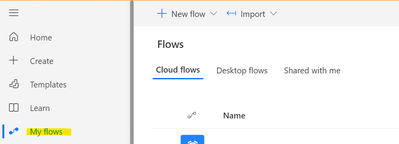
2. Click My Flows at the Left Side


rampprakash_0-1714736875580.png


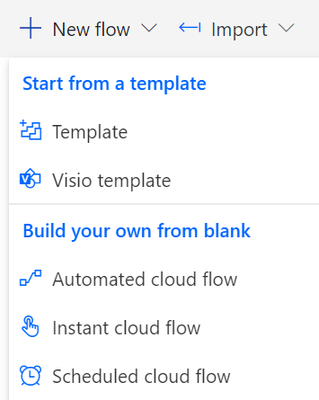
3. Click New Flows and Select Scheduled Cloud Flows


rampprakash_1-1714736970375.png


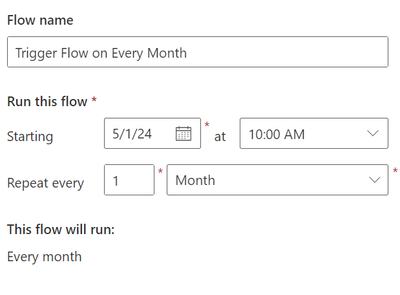
4. Once Selected it will prompt a page there enter the Name of the Flow and Select the Date on when to trigger and Select the Repeat every 1 MONTH

rampprakash_2-1714737550885.png


That's it :slightly_smiling_face:


Thursday, May 2, 2024

How to Install the Microsoft Dataverse Accelerator in the Dataverse Environment?

 Introduction:


In this blog we will see how to Install Microsoft Dataverse Accelerator in Dataverse Environment.


Implementation Steps:


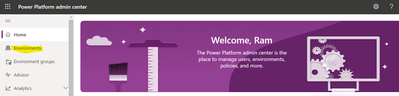
  1. Navigate to https://admin.powerplatform.microsoft.com

    rampprakash_0-1714652325244.png


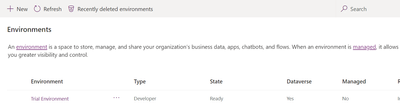
  2. Select Environment at the Left Side and Open the Environments

    rampprakash_1-1714652325261.png


  3. Select Resource à Dynamics 365 apps

    rampprakash_2-1714652325263.png


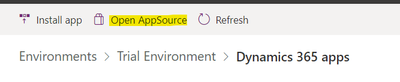
  4. And make sure Dataverse accelerator app is installed if not click Open App Source

    rampprakash_3-1714652325264.png


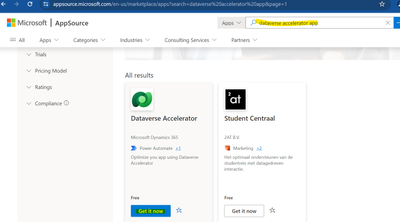
  5. Search for Dataverse Accelerator App and Click Get It now
    rampprakash_4-1714652325265.png


  6. It will show a Pop Up Enter the Mandatory Details and Click Submit

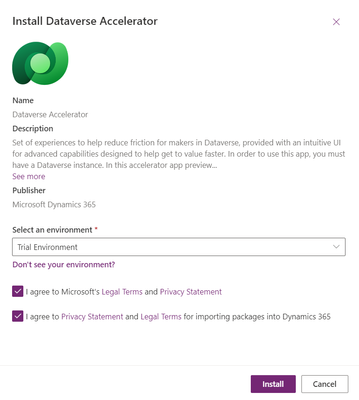
  7. It will Again prompt a page to Select the Environment
    rampprakash_5-1714652325272.png


  8. Click Install. That’s it

  9. Now Navigate to https://make.powerapps.com
    rampprakash_6-1714652325275.png

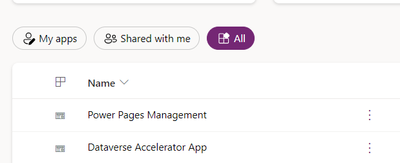
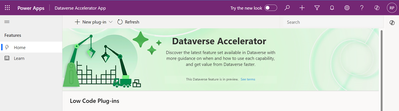
    10. Now you will see Dataverse Accelerator App Installed

    rampprakash_7-1714652325283.png


    rampprakash_0-1714652453586.png

    That's it :)

How to Clear Cache in Canvas PowerApps while working on Offline mode?

  Introduction In this blog, we’ll look at how to clear cache in Canvas Apps when using the Power Apps mobile application, especially when t...