Introduction:
In this Blog we will see how to fix Microsoft Flow error - InvokerConnectionOverrideFailed
Implementation Steps:
Consider while creating a new Power Automate Flow which contains Excel or SharePoint. Once After you done with your flow while triggering/testing the flow sometimes you will get Request to Azure Resource Manager failed with error: '{"error":{"code":"InvokerConnectionOverrideFailed","message":"Could not find any valid connection for connection reference name 'shared_excelonlinebusiness' in APIM tokens header."}}'. this error.
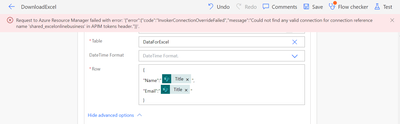
Why this Issue Occurs?
This is Because the While Creating the Flow you are trying to add a new Connection within the flow like Adding an Excel (it will automatically create a Connection or SharePoint etc.,.)
How to Resolve this Issue?
There are Couple of Ways we can Resolve this Issue
Resolution 1 - Below Steps need to be Performed Once the Flow Gets Created :
Once the flow gets Created
1. Navigate to https://make.powerautomate.com
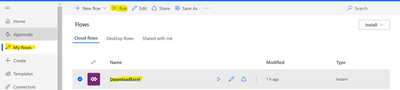
2. Click My Flows
3. Select the Flow and Click on RUN
4. Once You Click on Run it will Load the Popup with Respective Connections ( All the Connection with Current Microsoft Flow is Required)
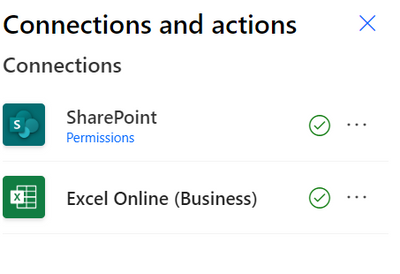
5. Once after it is Success you are Good to Trigger the Flow.
Refresh the Screen and Start Working 
Resolution 2 - Below Steps need to Be Followed before Flow Gets Created:
1. Navigate to https://make.powerautomate.com
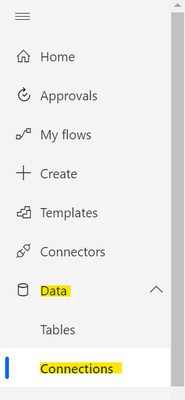
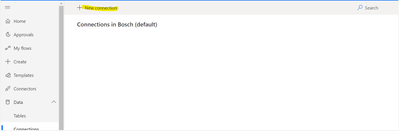
2. Click on Data --> Select Connections
3. Click New Connections
4. Search for the Respective Properties Item to Use (like Excel, SharePoint, Dataverse etc.,.)
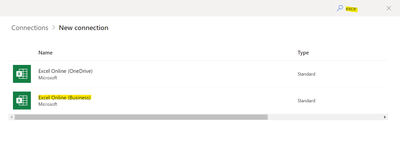
5. Select the Respective Item --> Once Selected it will Show you a Popup to Create a Connection

6. Click Create
7. Once After You done this you are food to Create Microsoft Flow, now if you try to add a new connection it will Automatically fetch it from the Respective Connections which we have created.
That's it


Excellent, it worked perfectly. I had to delete one flow and start over before I found this article. After I Run the flow the connection came back. Thank you very much!
ReplyDeleteThis worked! Thanks for the info
ReplyDelete