Tuesday, November 9, 2021

Make All Field Read only MSCRM or Model Driven apps


Introduction:


In this blog we will see how to make all the filed as Read- Only using Javascript in MSCRM/DataVerse environment.


Implementation steps:


Copy the Below Code in your OnLoad Operation to make all the Fields Read Only


function MakeAllFieldReadOnly(){

 Xrm.Page.data.entity.attributes.forEach(

  function (attribute, index) {

      var attributeName = attribute.getName();

          Xrm.Page.getControl(attributeName).setDisabled(false);

  });

}

Monday, November 8, 2021

Comments in Microsoft Flow (Preview)

Introduction: 


In this blog we will see how to add/Edit/Delete or Resolve Comments in Microsoft flow 


Implantation Steps:


1. Navigate to https://flow.microsoft.com or based on your organization flow URL needs


2. Open or Create a New Flow


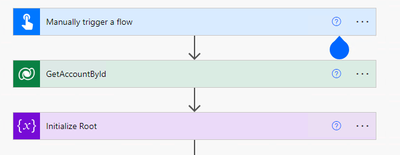
3. Once the Flow Gets Created


rampprakash_0-1636370400746.png


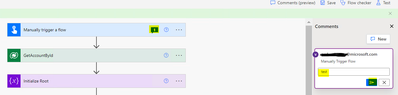
4. Click on the Item where you need to add Comments then CLICK Comments(Preview) at the Top


rampprakash_1-1636370544695.png


5. Then Click On New and enter the Comments


rampprakash_3-1636370720719.png


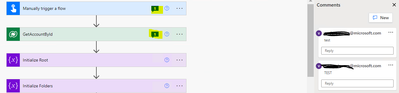
6. To add a new Comment Again click on the item in the flow then Click new and Add a new Comments


rampprakash_4-1636370804031.png


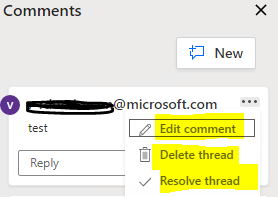
7. To Delete comment / Edit Comment or Resolve Click on the Three Dots at the right side to process it


rampprakash_5-1636370890784.png


That's it :slightly_smiling_face:

Monday, November 1, 2021

Show or Hide TIME component from Date Time in Model Driven Apps


Introduction:

In this blog we will see how to show or hide Time Component using JavaScript in Model Driven Apps/ MSCRM


Implementation Steps:


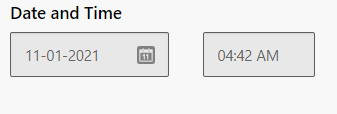
Some time Use want to Show/Hide Time Field Component based on their Requirement


rampprakash_0-1635767054619.png


To Achieve that we need to write some JavaScript to enable and disabled Component


Syntax:


formContext.getControl(arg).setShowTime(bool);


arg = Field Logical Name

bool = true/false 


To Enable time Component:


function enableTimeComponent(executionContext){
var formContext = executionContext.getFormContext();
formContext.getControl("FieldLogicalName").setShowTime(true);
}


To Disable time Component:


function enableTimeComponent(executionContext){
var formContext = executionContext.getFormContext();
formContext.getControl("FieldLogicalName").setShowTime(false);
}


That's it 

Thursday, October 28, 2021

PowerApps force sync users from Azure AD to Data Verse Environment.


Introduction:

In this Blog we will see how to Force Sync Users from Azure AD Security Group with Data Verse Environment.


Implementation steps:


1. Make Sure the user is have proper License for accessing Microsoft Data verse


2. Navigate to https://flow.microsoft.com


3. Click Flows


4. Click New --> Select Instant Cloud Flow


5. Enter the Name "FORCE SYNC USER"


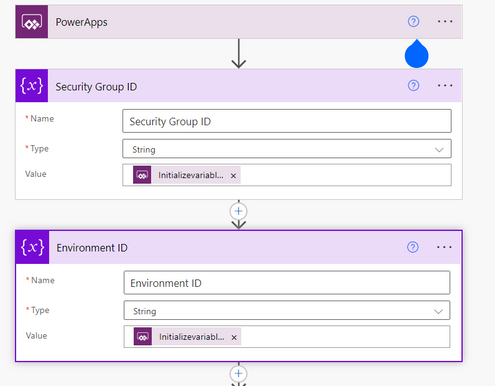
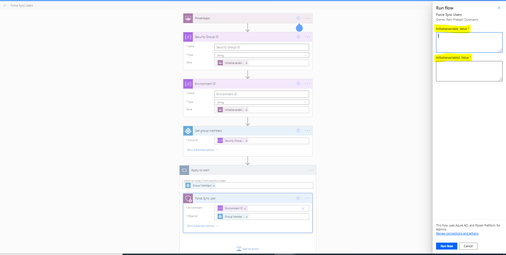
6. Create 2 Variables to get Environment ID and Group ID


rampprakash_2-1635409833116.png


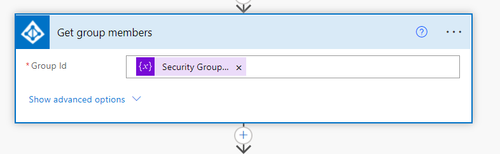
7. Get the Group Members from Azure AD

rampprakash_3-1635409866548.png


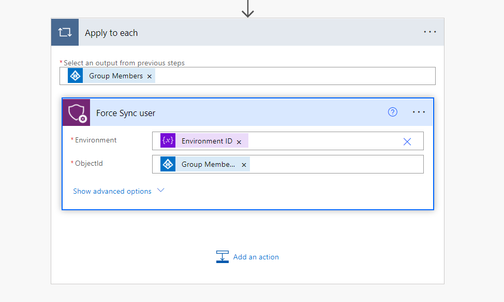
8. Then Sync the Users with FORCE SYNC USER


rampprakash_4-1635409912654.png


Thats it :slightly_smiling_face: Click on Test and Pass the Variables (Environment ID and Security Group ID


rampprakash_5-1635410012471.png

Tuesday, October 19, 2021

Side Panes in Model Driven Apps


Introduction:


In this Blog, we will see what are the features and how we can use Side Panes in Model Driven Apps.

Implementation Steps:


Consider a scenario, on click of a Button I need to show a HTML page in the Form. Initially we have used Dialog to display the same in the form but Microsoft have introduced a new feature to display a SIDE PAN in the Form


Syntax:


Xrm.App.sidePanes.createPane(paneOptions)


PanOptions:


You can refer to https://docs.microsoft.com/en-us/powerapps/developer/model-driven-apps/clientapi/reference/xrm-app/xrm-app-sidepanes/createpane


Sample Code to Open HTML Page:


Check Weather the pane is already opened or not. If opened Close the pane


var currentPane = Xrm.App.sidePanes.getSelectedPane();
if (currentPane !== null && currentPane !== undefined && currentPane.paneId === "PANIDUNIQUENAME") {
var promotionPane = Xrm.App.sidePanes.getPane("PANIDUNIQUENAME");
promotionPane.close();
}


Below code for Opening the HTML page in Side pan


try {       
        Xrm.App.sidePanes.createPane({
            title: "PANID",
            paneId: "PANIDUNIQUENAME",
            canClose: true
        }).then((pane) => {
            pane.navigate({
                pageType: "webresource",
                webresourceName: "/webresources/yourhtmlpage.html"
            });
        });
    }
    catch (e) {
        throw e;
    }


If you want to pass any parameter from form to HTML in Side Pan


try {      
var formContext = primaryControl;
var qs = "guidofRecord=" + formContext.data.entity.getId().replace('{', '').replace('}', ''); // guidofRecord = you can pass any dummy variables
        Xrm.App.sidePanes.createPane({
            title: "PANID",
            paneId: "PANIDUNIQUENAME",
            canClose: true
        }).then((pane) => {
            pane.navigate({
                pageType: "webresource",
                webresourceName: "/webresources/yourhtmlpage.html"
                data: encodeURIComponent(qs)
            });
        });
    }
    catch (e) {
        throw e;
    }


Thats it.


Conclusion:

This is how we want to display HTML image using Side Pan in DataVerse/MSCRM

Saturday, October 16, 2021

Share Records with Permission using Web API in Dataverse or MSCRM


Introduction 

In this Blog we will see how to share a Row/Record with permission using Web API JavaScript


Scinario:

Consider we have an Contact Field in Account Entity. then On save of record i need to take the Respective Contact and Share the Account Owner to Contact Owner.


Parameter For Sharing Record

Read : ReadAccess

Write : WriteAccess

Append : AppendAccess

Append To : AppendToAccess

Create : CreateAccess

Delete : DeleteAccess

Share : ShareAccess

Assign : AssignAccess


JavaScript code for Implementing:


function shareUserOrTeamtoRecord(executionContext) {
    var context = executionContext.getFormContext();
    var target = {
        "contactid": "ACAAB842-21C7-E811-A96F-000D3A16A41E", // Pass your respective Record id
        "@odata.type": "Microsoft.Dynamics.CRM.contact" // Pass your respective Entity Logical name record type
    };

    // Sharing with Team
    var principalAccess = {
        "Principal": {
            "teamid": "d272654b-57f5-4564-8d0b-36d0d4c426c4",
            "@odata.type": "Microsoft.Dynamics.CRM.team"
        },
        "AccessMask": "ReadAccess, WriteAccess"
        //Access Mask Sample "ReadAccess, WriteAccess, AppendAccess, AppendToAccess, CreateAccess, DeleteAccess, ShareAccess, AssignAccess"
    };

    // Sharing with User
    var principalAccess = {
        "Principal": {
            "teamid": "d272654b-57f5-4564-8d0b-36d0d4c426c4",
            "@odata.type": "Microsoft.Dynamics.CRM.team"
        },
        "AccessMask": "ReadAccess, WriteAccess"
        //Access Mask Sample "ReadAccess, WriteAccess, AppendAccess, AppendToAccess, CreateAccess, DeleteAccess, ShareAccess, AssignAccess"
    };

    var parameters = {
        "Target": target,
        "PrincipalAccess": principalAccess
    };

    var req = new XMLHttpRequest();
    req.open("POST", context.getClientUrl() + "/api/data/v9.0/GrantAccess", true);
    req.setRequestHeader("OData-MaxVersion", "4.0");
    req.setRequestHeader("OData-Version", "4.0");
    req.setRequestHeader("Accept", "application/json");
    req.setRequestHeader("Content-Type", "application/json; charset=utf-8");
    req.onreadystatechange = function () {
        if (this.readyState === 4) {
            req.onreadystatechange = null;
            if (this.status === 204) {
                //Success - No Return Data - Do Something
            } else {
                var errorText = this.responseText;
                //error response
            }
        }
    };
    req.send(JSON.stringify(parameters));
}


Conclusion:


That's it :) This is how we need use above JavaScript to implement Record Sharing using WebApi.


Tuesday, October 12, 2021

Open URL in PowerApps/Dataverse/MSCRM form Using JavaScript


Introduction:


In this blog we will see how to write Javascript to Open URL in PowerApps/MSCRM/Dataverse Environment.


Implementation Steps:


Syntax:


Xrm.Navigation.openUrl(url,openUrlOptions)


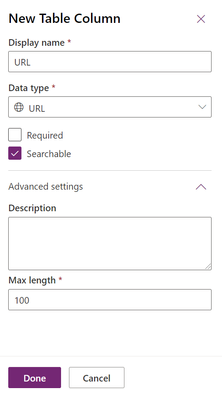
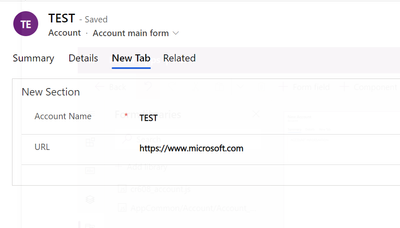
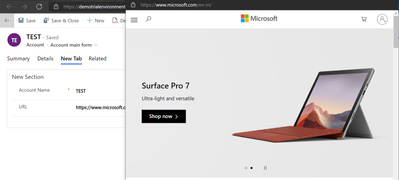
Consider am having a field in an Account Entity Called URL. Then in Onload of Page, if URL Field Contains Data Open another Page with URL


To Begin with i created a Field Called URL in Account Form

rampprakash_0-1634019498527.png


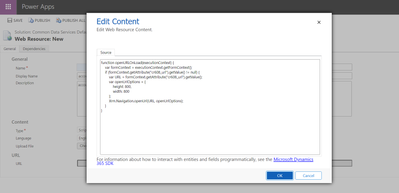
Then Create a WebResource File with Type as JS

rampprakash_1-1634020115162.png


function openURLOnLoad(executionContext) {
    var formContext = executionContext.getFormContext();
    if (formContext.getAttribute("cr608_url").getValue() != null) {
        var URL = formContext.getAttribute("cr608_url").getValue();
        var openUrlOptions = {
            height: 800,
            width: 800
        };
        Xrm.Navigation.openUrl(URL, openUrlOptions);
    }
}


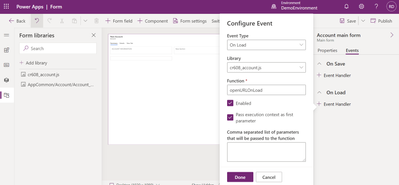
Then Call the function in OnLoad Opearation


rampprakash_2-1634020208004.png


Save and then Publish


Create a Record in Account Entity 

rampprakash_3-1634020285670.png


Save then Refresh the Form


rampprakash_4-1634020327591.png


That's it :slightly_smiling_face:


Video For your Reference: Watch it and Subscribe it :slightly_smiling_face:


How to Clear Cache in Canvas PowerApps while working on Offline mode?

  Introduction In this blog, we’ll look at how to clear cache in Canvas Apps when using the Power Apps mobile application, especially when t...